Configure MFA
Configure MFA settings in Logto
Logto provides flexible MFA configuration options to meet different security requirements. You can configure MFA at the global level for all users or enable it on a per-organization basis for multi-tenant applications.
Global MFA configuration
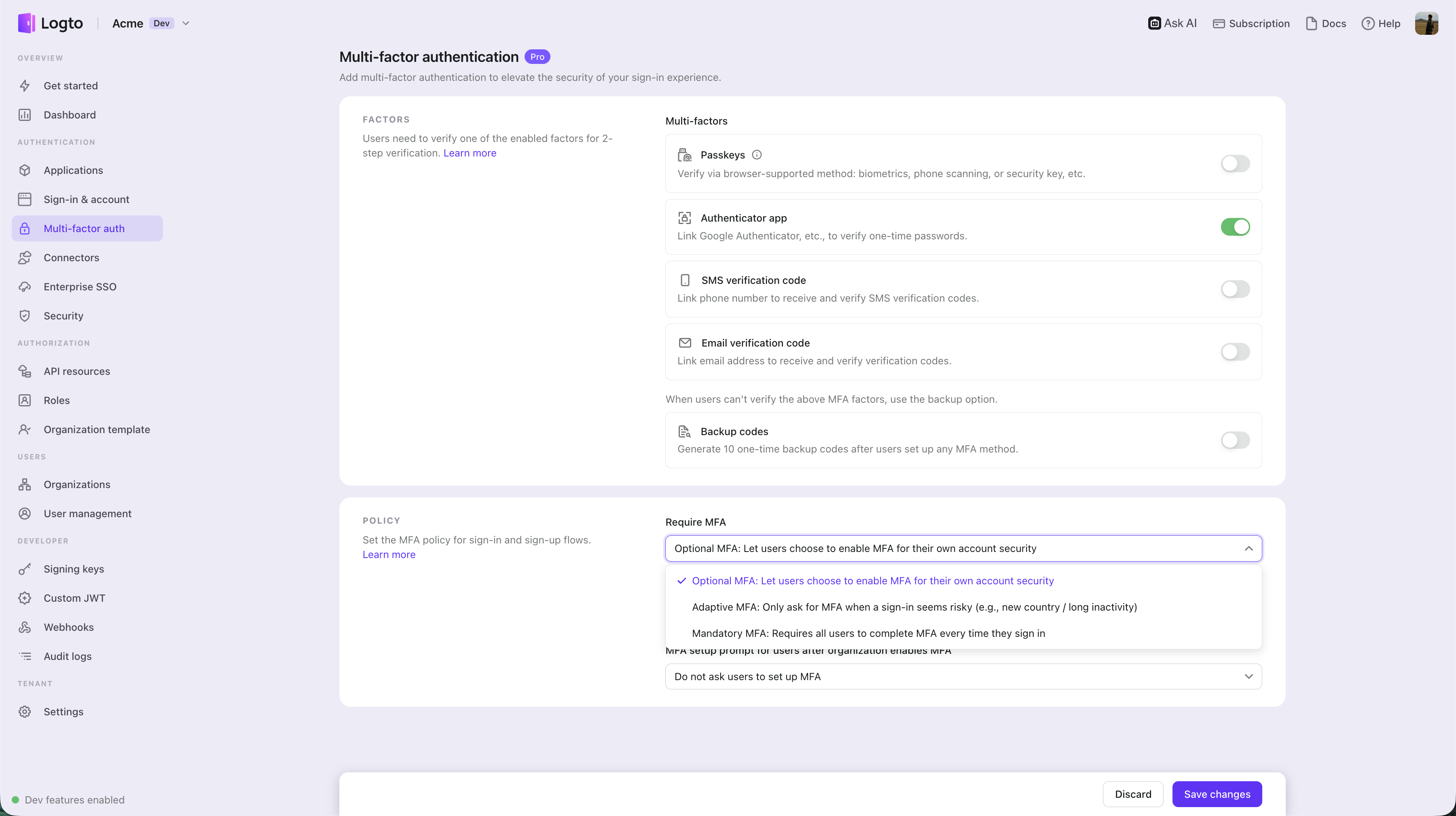
Follow these steps to enable MFAs in users' Logto sign-in flow:
- Navigate to: Console > Multi-factor auth.
- Enable the supported verification factors for your users.
- Primary factors:
- Passkeys (WebAuthn): A high-security option suitable for web products supporting device biometrics or security keys, etc., ensuring robust protection.
- Authenticator App OTP: The most common and widely accepted method. Use a time-based one-time password (TOTP) generated by an authenticator app like Google Authenticator or Authy.
- SMS verification: A convenient method that sends one-time verification codes via SMS to the user's registered phone number, ideal for users who prefer mobile-based authentication without additional apps.
- Email verification: A widely accessible method that delivers one-time verification codes to the user's registered email address, suitable for users across all platforms and devices.
- Backup factors:
- Backup codes: This serves as a backup option when users can't verify any of the primary factors mentioned above. Enabling this option reduces friction for users' access successfully.
- Primary factors:
- Choose the Require MFA policy from the dropdown. This policy controls when users must complete MFA during sign-in:
- Optional MFA (Optional MFA: Let users choose to enable MFA for their own account security): Let users decide whether to enable MFA for their own account security. Users can skip MFA setup during sign-in and set it up later through your self-service account settings page. Learn more about implementing a user account settings page.
- Adaptive MFA (Adaptive MFA: Only ask for MFA when a sign-in seems risky (e.g., new country / long inactivity)): Apply MFA only when a sign-in appears unusual, so low-risk sign-ins can stay smoother while suspicious sign-ins get extra verification. To make that decision, Logto evaluates built-in contextual risk rules (new country, geo velocity, long inactivity, and untrusted IP signals). This mode depends on your existing MFA setup (at least one MFA factor must be enabled), applies to end-user sign-in flows, and does not rely on device fingerprinting. See Adaptive MFA for rule thresholds, edge header prerequisites, and webhook details.
- Mandatory MFA (Mandatory MFA: Requires all users to complete MFA every time they sign in): Require all users to complete MFA on every sign-in. Users who have not set up MFA must complete setup before they can continue.
- When Optional MFA is selected, configure the MFA set-up prompt policy:
- Do not ask users to set up MFA: Users will not be prompted to set up MFA during sign-in or registration.
- Ask users to set up MFA during registration (skippable, one-time prompt): New users will be prompted to set up MFA during registration, and existing users will see the prompt at their next sign-in. Users can skip this step and it won't appear again.
- Ask users to set up MFA on their next sign-in attempt after registration (skippable, one-time prompt): New users will be prompted to set up MFA at their next sign-in after registration, and existing users will see the prompt at their next sign-in. Users can skip this step and it won't appear again.
- When Adaptive MFA is selected, only the two non-skippable MFA set-up prompt policies are supported (Do not ask users to set up MFA is not available):
- Ask users to set up MFA during registration (non-skippable): New users must complete MFA setup during registration, and existing users without MFA must complete it at their next sign-in.
- Ask users to set up MFA on their next sign-in attempt after registration (non-skippable): New users must complete MFA setup at their next sign-in after registration, and existing users without MFA must complete it at their next sign-in.
When Optional MFA is selected with a setup prompt enabled (Ask users to set up MFA during registration (skippable, one-time prompt) or Ask users to set up MFA on their next sign-in attempt after registration (skippable, one-time prompt)), Logto first shows an enable-MFA confirmation page titled Turn on 2-step verification. Users can choose Enable 2-step verification to continue to MFA binding, or skip the prompt and finish the current sign-in or sign-up flow without turning on MFA. Under Adaptive MFA or Mandatory MFA, users go straight to MFA factor binding without seeing the Turn on 2-step verification confirmation page.
If you need to prompt a user again after they skipped MFA enrollment, reset their skip state so the setup screen appears the next time they sign in. Admins can use the Management API (PATCH /api/users/{userId}/logto-configs), and developers building self-service flows can call the Account API (PATCH /api/my-account/logto-configs). Management API reference · Account API reference
Organization-level MFA configuration
For products with a multi-tenant architecture that support Organizations, in most cases you don't need to require MFA for all users. Instead, MFA can be enabled on a per-organization basis, allowing you to tailor the requirements based on each client's needs. To get started, refer to Requiring MFA for organization members.
When Optional MFA is selected in the Require MFA dropdown, Console displays the MFA setup prompt for users after organization enables MFA setting. Set it to Ask users to set up MFA on next sign-in (non-skippable) so members of any organization that requires MFA are prompted to complete MFA setup at their next sign-in and cannot skip it. (This setting is hidden in Console and not saved when Adaptive MFA or Mandatory MFA is selected.)
Under Adaptive MFA, low-risk sign-ins that trigger no risk rule are not challenged for MFA verification even for users who have per-user Require MFA setup enabled or belong to an organization with isMfaRequired enabled.
Suggest adding another MFA factor
In Console > Multi-factor authentication, the Suggest adding another MFA factor switch (enabled by default; controlled by mfa.skipAdditionalBindingSuggestion in the Sign-in Experience API) prompts a user to add another MFA factor during sign-up or sign-in when:
- The user's only MFA factor is the email address, phone number, or passkey they sign in with, and
- At least one other MFA factor is enabled for the tenant.
Users can skip this prompt. When a user skips the suggestion, Logto persists mfa.additionalBindingSuggestionSkipped: true on the user's logtoConfig so the suggestion does not reappear on future sign-ins. You can update or reset this flag via the Account API (PATCH /api/my-account/logto-configs with { "mfa": { "additionalBindingSuggestionSkipped": false } }; note that GET /api/my-account/logto-configs and GET /api/users/{userId}/logto-configs do not return this field).
Per-user MFA requirement
Administrators can require MFA setup for an individual user regardless of the tenant's Optional MFA prompt setting:
- In Console: Open Console > User management, select the user, and enable Require MFA setup in the Multi-factor authentication section.
- Via Management API: Call
PATCH /api/users/{userId}/logto-configswith{ "mfa": { "required": true } }(and read it withGET /api/users/{userId}/logto-configs). See Account settings by Management API.
End users cannot modify mfa.required through the Account API (PATCH /api/my-account/logto-configs); for self-service clients, it is exposed read-only as required on GET /api/my-account/mfa-settings.
When per-user mfa.required is true, the user must set up at least one MFA factor before completing sign-in and cannot skip setup. Under Optional MFA, it also requires MFA verification on sign-in even if the user enabled skipMfaOnSignIn or set enabled: false. Under Adaptive MFA, low-risk sign-ins that trigger no risk rule are still not challenged for MFA verification.
MFA user flow
MFA set-up flow
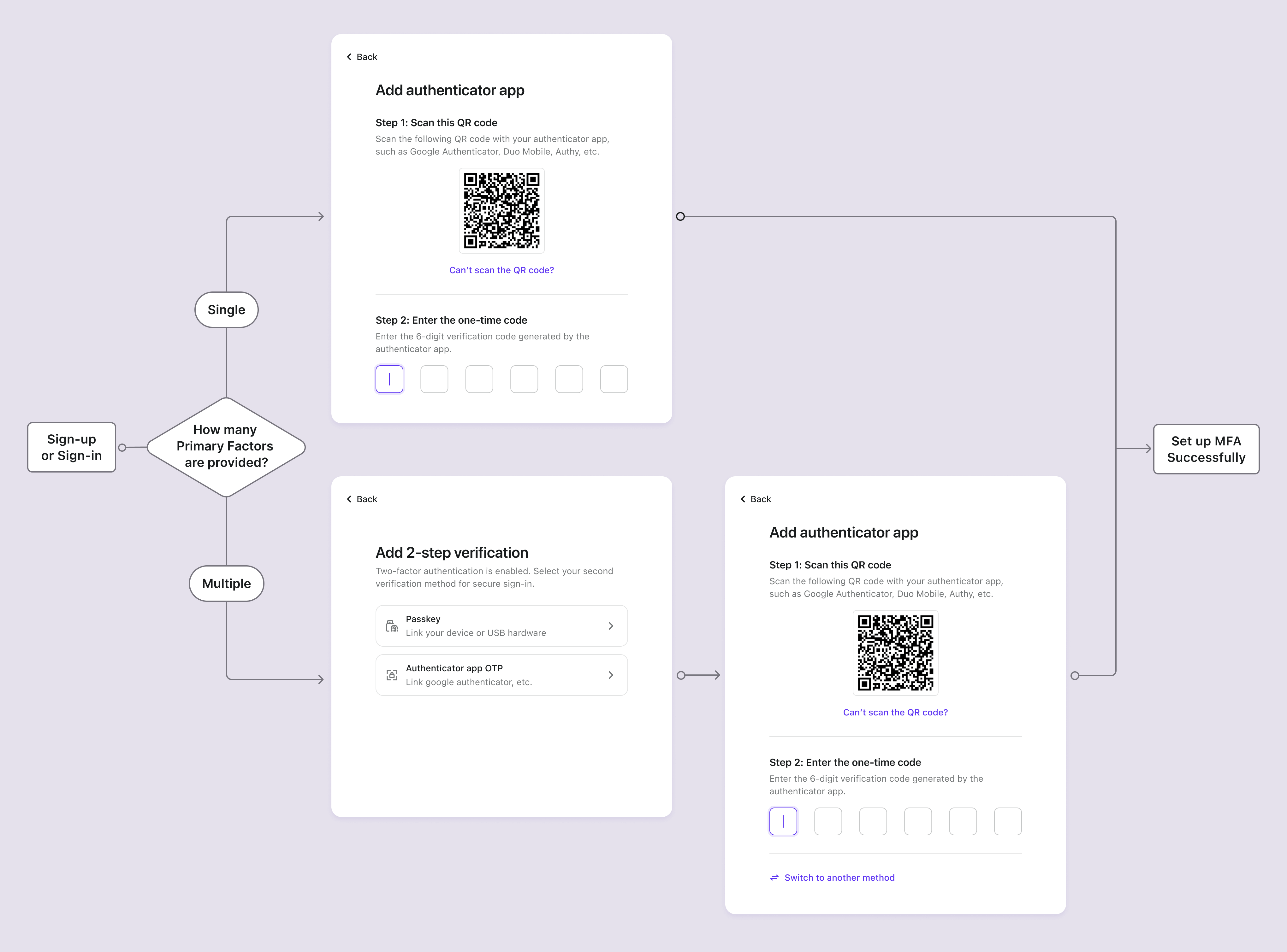
Once MFA is enabled, users may be prompted to set up MFA during sign-in and sign-up. Users can skip this setup process only when Optional MFA is selected in the Require MFA policy.
- Visit sign-in or sign-up page: The user navigates to the sign-in or sign-up page.
- Completes sign-in or sign-up: The user completes the identity verification process within the sign-in or sign-up flow.
- If Optional MFA is selected with a setup prompt enabled, Logto first shows the
Turn on 2-step verificationconfirmation page, where users can skip MFA setup or clickEnable 2-step verificationto continue. - Under Adaptive MFA or Mandatory MFA, users go straight to MFA factor binding without seeing the
Turn on 2-step verificationpage and cannot skip setup.
- If Optional MFA is selected with a setup prompt enabled, Logto first shows the
- Set up MFA primary factor: The user is prompted to set up their primary MFA factor (either passkey, Authenticator app OTP, SMS code, or email code).
- If multiple primary factors are enabled, they can choose their preferred option.
- If the primary factor is the same as the sign-up identifier (e.g., SMS or email), it will be pre-verified, allowing users to skip the verification step and proceed directly to the next step (e.g., "Add another one 2-step verification" or "Save your backup factors").
- If Optional MFA is selected in the Require MFA policy, they can skip this step by selecting the "Skip" button.
- Set up MFA backup factor: If Backup codes are enabled, the user is prompted to save backup codes after successfully configuring their primary authentication factor. Auto generated backup codes will be displayed to the user, which they can download and store securely. User must manually confirm the backup codes to complete the MFA setup process.
MFA verification flow
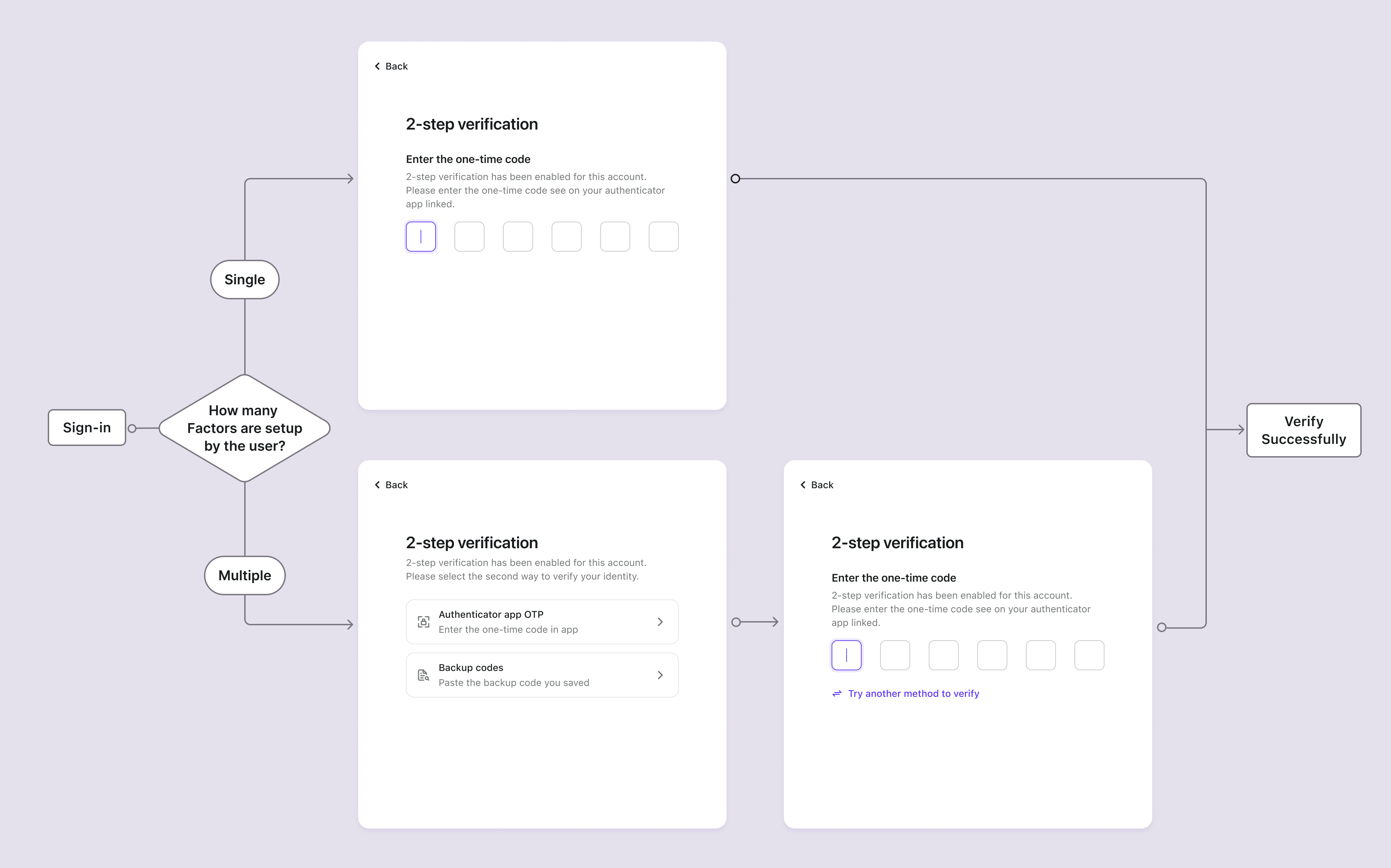
Users who have set up MFA will be prompted to verify their identity using their configured MFA factors during sign-in. The verification factor will depend on the MFA configuration in Logto and the user settings.
If the user signs in with passkey sign-in, Logto skips the separate MFA verification step. This applies because the passkey used for sign-in is itself a WebAuthn MFA factor.
- If a user has only one available MFA factor, they will verify it directly.
- If a user has multiple available MFA factors, Logto orders them in a fixed priority order and opens the first available factor directly:
- Passkey (WebAuthn)
- Authenticator app OTP (TOTP)
- SMS verification code
- Email verification code
- Backup codes
- When two or more MFA factors are available, the verification page displays a Try another method to verify link so the user can open the method selection list and switch to any of their other available factors (including a one-time backup code if enabled).
Sign-in binding rules and exemptions
Keep the following behavior in mind when designing MFA journeys:
- Backup code re-prompting: When Backup codes are enabled and a user already has another active MFA factor, Logto prompts the user during sign-in to generate and save a new set of backup codes if all previously generated codes have been used or if Backup codes were enabled after the user initially enrolled.
- Verified factor required to bind during sign-in: During a
SignIninteraction where the user already has MFA factors available, binding a new factor (including saving regenerated backup codes or following the "Suggest adding another MFA factor" prompt) requires completing an MFA verification challenge first (or signing in via passkey sign-in or enterprise SSO). Sign-ins that bypass MFA verification—such as a trusted device, a low-risk Adaptive MFA sign-in that triggered no rule, or user-skipped Optional MFA (skipMfaOnSignIn/enabled: false)—cannot bind new MFA factors during that sign-in flow. Users in those sessions can add factors afterward via Account Center or the Account API. - Enterprise SSO exemption: Signing in or registering through Enterprise SSO skips tenant MFA verification and MFA setup prompts during that interaction (unless MFA is explicitly requested by the client via
acr_values, such asurn:logto:acr:mfa). - Forgot password exemption: The Forgot password flow skips MFA verification and MFA setup prompts.
MFA management
Beyond the initial setup during sign-in/sign-up, users can manage their MFA settings through a self-service account center. This provides flexibility for users to bind or unbind MFA factors based on their needs.
Building an account center
You can build a comprehensive account center using Logto's Account API, which allows users to:
- Bind new MFA factors: Add additional authenticator apps, passkeys, or regenerate backup codes
- Unbind existing MFA factors: Remove MFA methods they no longer wish to use
- View current MFA status: See which MFA factors are currently configured
Post-login MFA setup prompts
For applications that don't require MFA during initial registration, you can implement intelligent prompts to encourage MFA setup:
- Conditional prompts: Show MFA setup recommendations based on user behavior or account value
- Security dashboards: Display security scores that improve when MFA is enabled
- Gradual onboarding: Present MFA setup as part of a progressive security enhancement flow
Learn more about implementing these patterns with Account API.
Manage user's MFA in Console
In the Console > User management, administrators can manage user MFA settings effectively:
- View user MFA status: Check which MFA factors are enabled for each user.
- Remove user MFA: Remove stored MFA factors one by one. Implicit email or SMS verification code rows cannot be removed directly from this table, and when passkey sign-in is enabled, passkey (WebAuthn) rows have no remove button here and are managed under the Passkeys section on the same user details page.
FAQs
What happens when administrators remove user's existing MFA factors?
When administrators remove all of a user's primary MFA factors (passkey, authenticator app OTP, SMS, or email), the following scenarios will occur during the user's next sign-in:
Scenario 1: No MFA factors remain
- If no MFA factors exist (including no backup codes) and the MFA policy requires MFA, the user will be allowed to sign in without MFA verification and will be immediately prompted to set up MFA again.
Scenario 2: Backup codes still exist
- If backup codes are still available, the user must first verify using a backup code during sign-in.
- After successful backup code verification, the user will be prompted to set up a new primary MFA factor.
- Whether the user can skip this setup depends on your configured MFA policy.
- This approach prevents users from being locked out of their accounts when no primary factors are available.